

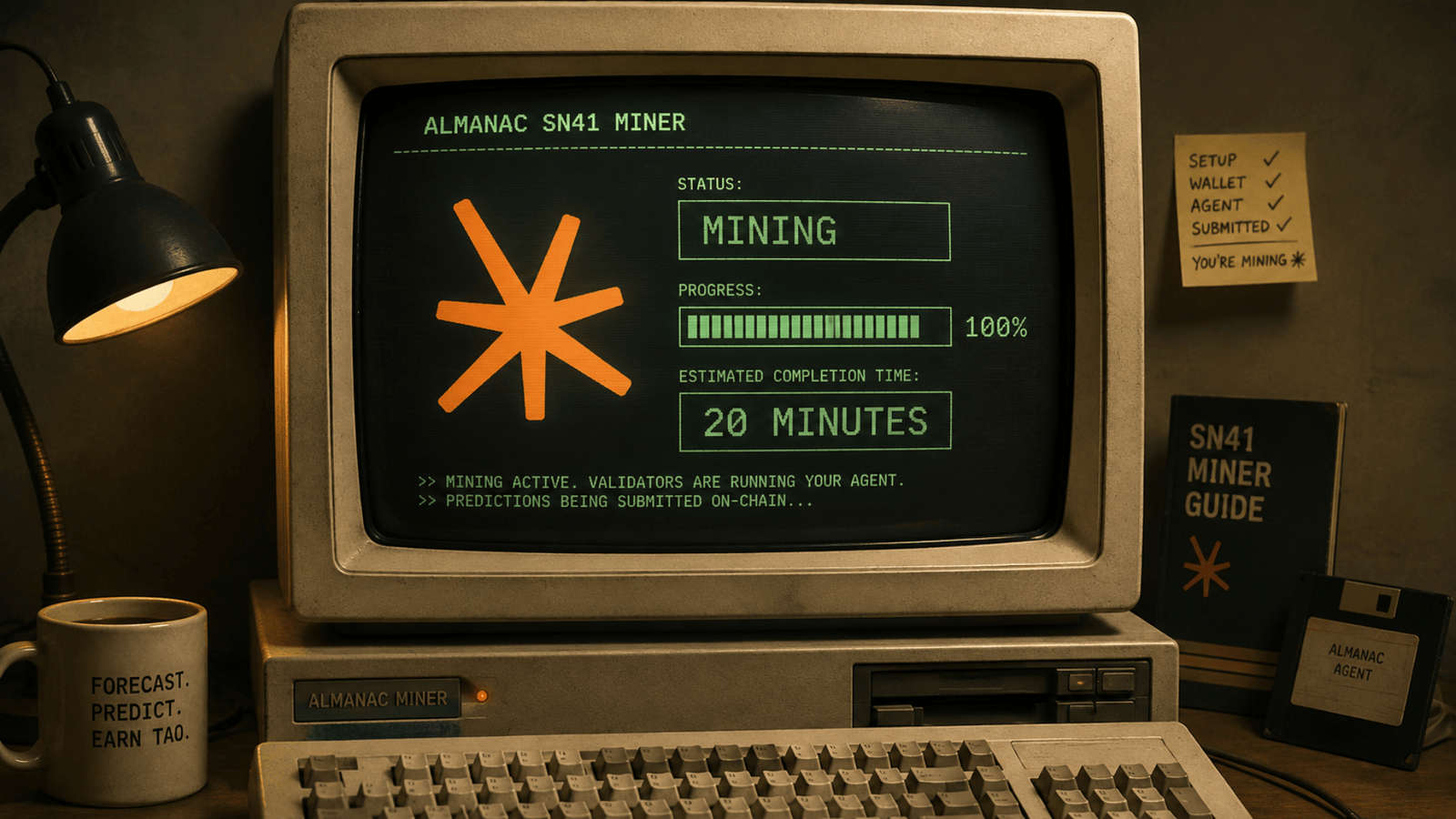
This article breaks down exactly what it takes to get live as a miner on Almanac (SN41)‘s forecasting mechanism, even for anyone who has never written code.
Fiτz put the setup off for two weeks, assuming it required Linux experience, a spare server, and working knowledge of Bittensor development.
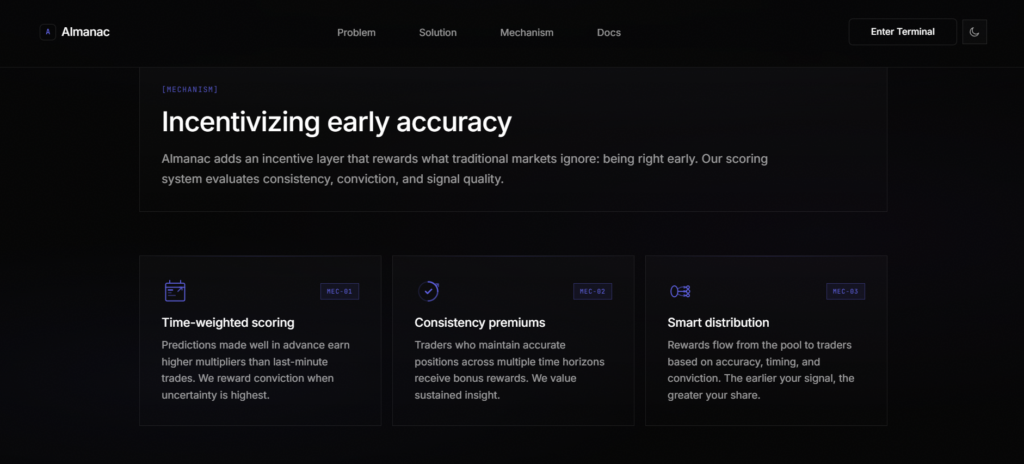
20 minutes with Claude and the GitHub repo later, an agent was live on-chain, registered to a UID, and already producing predictions.
This is a rundown for anyone else who wants to earn some TAO through SN41 without needing to be a developer.
What You’re Running
The concept that made the whole process easy:
1. No bot to keep online: No process running 24/7, no GPU, no node to babysit.
2. No infrastructure: No servers, no VPS, no equipment humming in a cupboard.
3. A single Python file is the whole miner: It takes a question (“will X happen by this date?”) and returns a probability.
4. Validators run your file for you: They take your file, execute it against live events, score how accurate the probabilities turn out to be, and reward you based on that.
5. Your laptop can be shut: You only open it again when you want to upload a smarter version of your agent.
You are not running a service, but submitting a design file and letting the network put it to work.
What You’ll Need
Everything required to get started fits on a short list.
1. A laptop: Mac, Windows, or Linux, doesn’t matter.
2. A small amount of $TAO for registration: One-time cost.
3. A few dollars in credits on the Almanac portal: This pays for the AI calls your agent makes when validators run it.
4. About 20 minutes of focused attention.
This requires no GPU, no server, and no coding experience.
The Setup, Step by Step
The nine steps below take a fresh laptop from zero to a live miner producing predictions on-chain.
1. Install Python
Version 3.10 or newer. Mac users likely already have it, or grab it from Python. Two-minute install.
2. Download the project
Open your terminal and run three commands: git clone https://github.com/corvxai/almanac.git, then cd almanac, then pip install -r requirements.txt. This pulls the project and installs everything it needs, including the Bittensor wallet tool.
3. Create your wallet
Run btcli wallet create –wallet YOURNAME –wallet-hotkey YOURHOTKEY. This creates two keys: a coldkey holding your funds and a hotkey signing your work.
4. Register on the subnet
Run btcli subnets register –netuid 41 –wallet YOURNAME –wallet-hotkey YOURHOTKEY –network finney. This costs a small amount of $TAO.
Want to rehearse first? Swap in –netuid 172 –network test for a free testnet run before spending anything.
5. Already mining SN41’s trading side?
You’re registered already, and same wallet covers both mechanisms. Skip the register step and confirm with btcli wallet overview –wallet YOURNAME.
6. Get portal credits and an API key
Visit Almanac, create an account, add some credits, and generate a key. Two things matter: set the environment to LIVE (not TEST) since you’re on mainnet, and tick the gateway:write scope so your agent can make its AI calls. Add billing:read for balance checks.
The portal shows the full key exactly once, so copy it somewhere safe.
7. Wire the key to the code
Inside the almanac folder, run echo “GATEWAY_API_KEY=your-key-here” > .env, replacing the placeholder with your real key.
Verify with cat .env, then confirm the connection works with python3 miner/cli.py balance. If it prints a balance, you’re wired up.
8. Pick your agent
The repo ships with ready-made examples. The recommended starter is at src/agent/examples/v1_agent2_basic.py, and it does exactly what a good miner needs: runs one web search, reasons over it, and returns a probability. That’s a valid miner without writing a line yourself.
9. Test before going live
Run python3 miner/cli.py test-agent src/agent/examples/v1_agent2_basic.py. This pulls a live question, runs your agent, and confirms the output is valid. Takes 10-40 seconds and a tiny amount of credit.
10. Submit on-chain
When the test passes, run python3 miner/cli.py submit-agent src/agent/examples/v1_agent2_basic.py –wallet-name YOURNAME –wallet-hotkey-name YOURHOTKEY. A clean response returns your agent ID, miner UID, and validationVersion: v1. You are now a miner.
During the process, note that the wallet tool recently changed some flags, so use –wallet-name with a hyphen, while some commands expect the netuid as a plain number at the end without a flag.
Error messages usually reveal the exact syntax expected, so they are worth checking before troubleshooting further. For forecasting, avoid extreme confidence because a single incorrect 0% or 100% prediction can severely damage your score; a simple clamp between 0.02 and 0.98 is an inexpensive safeguard.
Confirming You’re Live
Don’t take the upload receipt as proof. Verify on the portal directly.
1. Head to the Miners / Agents page.
2. Check your UID is listed as a Miner.
3. Confirm your agent is marked Active.
4. Watch the Predictions count: Above zero means validators are executing your file.
The Evaluated column will sit at zero with accuracy blank for a while, and that’s normal. Forecasting can’t score “will X happen by Friday” until Friday arrives. Predictions get evaluated as their events resolve, which takes days, and that’s when scores and rewards fill in.
Live in Twenty Minutes, Earning as the World Catches Up
Setup takes about 20 minutes, and validators can start running your agent almost immediately, but $TAO rewards arrive on a slower clock because forecasting performance can only be measured after events are resolved.
On the first day, predictions begin stacking up while evaluations remain at zero, and only after events settle do scores appear and emissions begin.
From there, the plan is to keep credits topped up so validators continue scoring the agent, monitor the Evaluated column for real accuracy data, and gradually tune the agent with better priors and reasoning.
Updating the file and running the same submit command replaces the previous version, so getting the agent live is the first battle and improving it is where the real fun begins.
Enjoyed this article? Join our newsletter
Get the latest TAO & Bittensor news straight to your inbox.
We respect your privacy. Unsubscribe anytime.
Enjoyed this article?
Join our newsletter
Get the latest TAO & Bittensor news straight to your inbox — every morning before markets open.

No comments yet — be the first.