

Images, videos, and documents can take up a growing share of a WordPress website’s hosting space. This can become a challenge for publishers and businesses that upload content regularly.

Moving those files to external storage helps free up space on the hosting server. Hippius (SN75) makes this possible through Hippius Media Offloader, a plugin that connects WordPress to its distributed storage network.
What Is Hippius Media Offloader?
Hippius Media Offloader is a free WordPress plugin that moves existing media libraries and new uploads from your hosting server to Hippius. You continue managing media through WordPress while the plugin handles transfers and serves migrated files through Hippius URLs.
Its dashboard tracks migration progress, errors, storage usage, and account balance. Storage is billed separately, with no download or egress fees listed by Hippius.
How Hippius Media Offloader Works
The plugin connects to Hippius through an S3-compatible API without requiring website code changes or IPFS setup. It uploads your files and replaces WordPress media links, including those for thumbnails and responsive image sizes.
Files are stored on Arion, which divides each file into 30 pieces using Reed-Solomon erasure coding and distributes them across independent machines. Files can be reconstructed even if 20 machines holding those pieces go offline.
Hippius encrypts files at rest so miners store encrypted bytes, but the plugin does not encrypt them before upload, and published website media remains publicly accessible. You can keep local copies or delete them after successful migration to free hosting space.
How to Use Hippius Media Offloader
To get started, you’ll need to set up your Hippius account, connect the plugin to WordPress, and migrate your media. Here’s how to complete each step.
1. Prepare Your Hippius Account
Create an account in the Hippius Console, add funds for storage, and generate your S3 Access Key ID and Secret Access Key, saving the secret securely because it is shown only once. Create a storage bucket with public access for media intended for public website pages, and optionally generate an API token to display your balance inside WordPress.
2. Install and Configure the Plugin
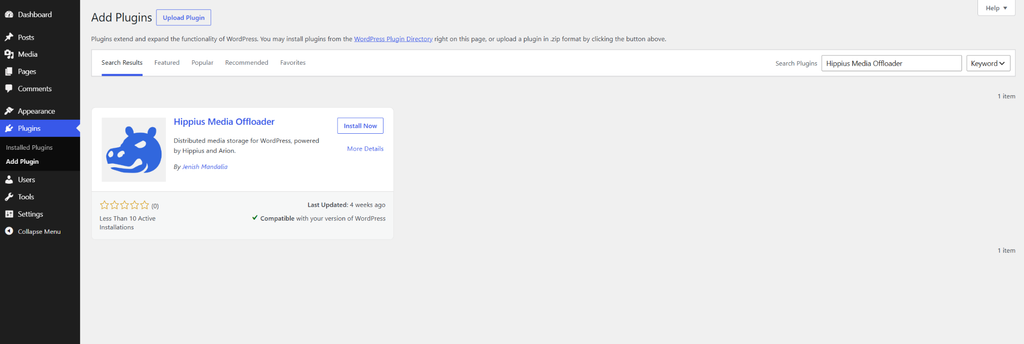
In WordPress, open Plugins, select Add New, search for Hippius Media Offloader, then install and activate it on a site running WordPress 5.0+, PHP 7.4+, and the cURL extension, preferably with HTTPS enabled.
Open Hippius Media in the admin sidebar and enter your credentials, bucket name, and default endpoint. Save your settings, click Test Connection, and leave Keep Local Files enabled during your first migration.
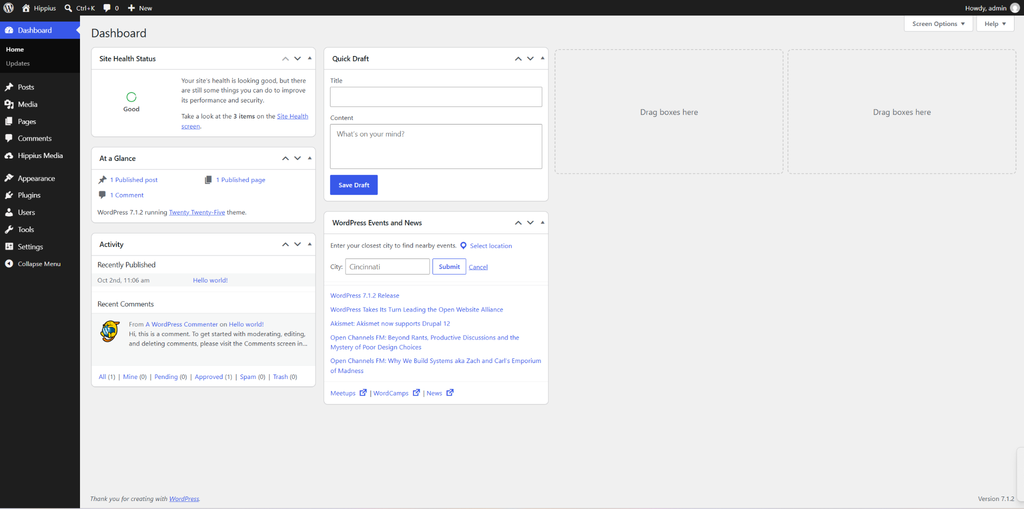
3. Migrate and Check Your Media
Open Hippius Media, select Bulk Migration, and click Start Migration. Files transfer in batches in the background, with progress and errors shown in the dashboard.
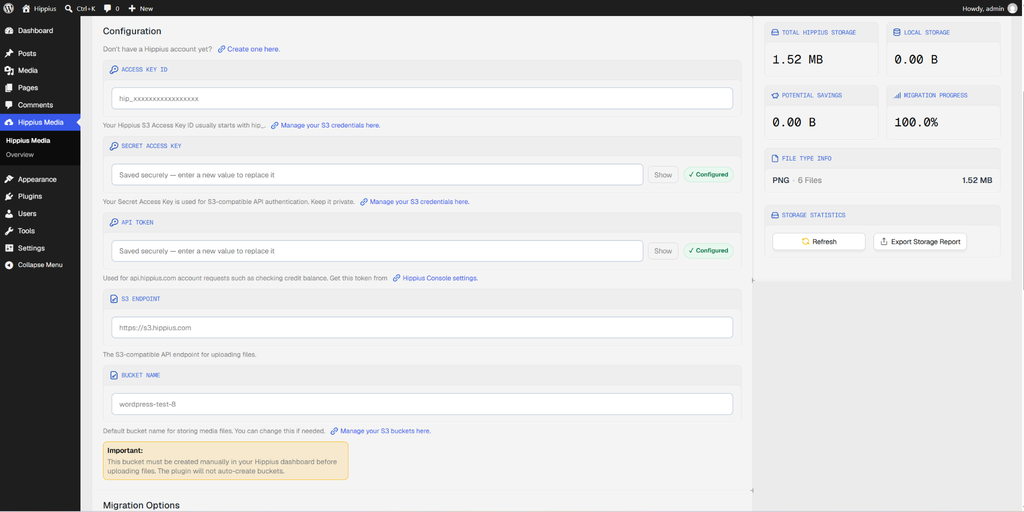
After migration, check that file links in the Media Library point to Hippius, then open the relevant pages to confirm images, thumbnails, and other media load correctly.
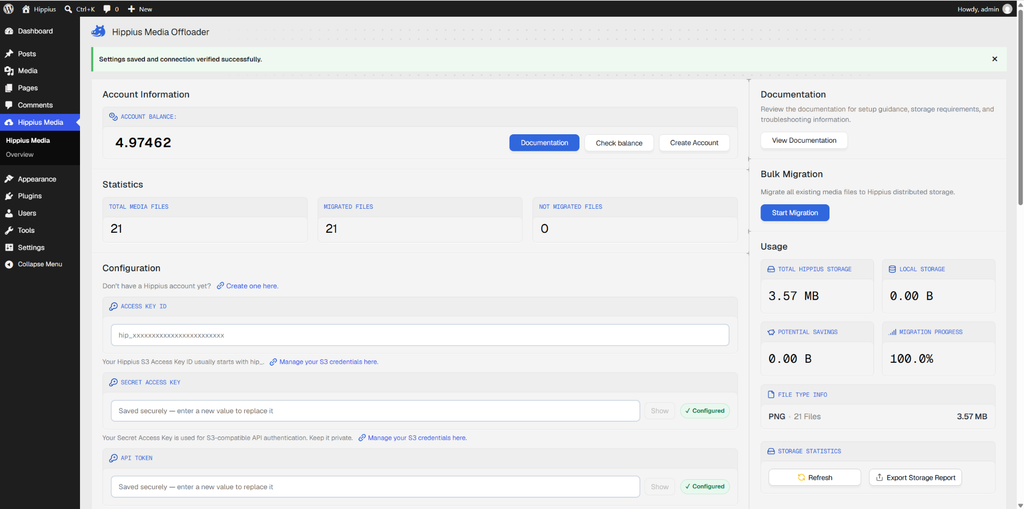
Once everything works, enable Auto-Migrate New Uploads to handle future uploads automatically. If something fails, check the plugin’s error logs, credentials, bucket permissions, and account balance.
What to Know Before Deleting Local Files
Keep your original files until you confirm that migrated media loads correctly across your website. Disabling Keep Local Files lets the plugin delete local copies after successful upload.
If local copies remain, deactivating the plugin allows WordPress to serve them from your website’s server again. Once deleted, restoring them takes extra work because the plugin cannot automatically download your library back into WordPress.
The plugin does not back up your WordPress database or act as a content delivery network (CDN). Maintain separate website backups and consider whether you need a CDN to help deliver media to visitors across different locations.
➛ Read Hippius’ Media Offloader Installation Playbook.
Enjoyed this article? Join our newsletter
Get the latest TAO & Bittensor news straight to your inbox.
We respect your privacy. Unsubscribe anytime.
Enjoyed this article?
Join our newsletter
Get the latest TAO & Bittensor news straight to your inbox — every morning before markets open.

No comments yet — be the first.